The Settings Are the Evidence: Device & Network Config Guides, Explained
About half of Level 1 isn't paperwork — it's configuration. That's the good news. Settings are fast, finite, and you can finish a device tonight.
📘 By Rob Maupin, founder of Overwatch Tools and author of CMMC Level 1: A Practical Guide for Small to Medium GovCon Contractors
Here is the sentence that stops more Level 1 self-assessments than any regulation ever written:
"I'm a contracts manager. I'm a machinist. I'm a mechanical engineer who happens to own the company. I am not an IT administrator, and half of this list is asking me to configure things."
That's a fair reaction. Look at the fifteen practices and roughly half of them clearly want something done to a machine, not written on a page. Protect against malicious code. Update the protection. Scan the files. Control the boundary. Authenticate the users. Separate anything publicly accessible. None of that gets solved by a signature.
So the mental math runs: documentation I could maybe muddle through — but the technical half needs an IT department I don't have, and hiring one costs more than the contract is worth.
That math is wrong, and it's worth being precise about why. Not because the configuration work is optional, and not because you secretly do have an IT department. It's wrong because at Level 1 scale, configuration is not a project. It's a checklist per device type. There are only so many kinds of machines in a fifteen-person shop, and each kind has a finite list of settings that satisfies the technical practices. Work the list, capture what you did, and that device is finished.
Part 2 covered the documentation map — how fifteen requirement statements decompose into 142 specific, checkable artifacts. This piece covers the other half: what actually happens on the laptop, the phone, and the router, and the one principle that decides whether any of it counts.
Roughly Half of Level 1 Lives in a Settings Menu
Level 1 is fifteen practices drawn from FAR clause 52.204-21 and mapped to NIST SP 800-171. Sort them by where the work physically happens and they fall into three rough piles.
Pure documentation. Media disposal procedures. Visitor logs and escort rules. Who is authorized to do what, written down and signed. These are pages, not settings.
Pure configuration. Malicious code protection, its updates, and its scanning. Boundary protection at the edge of your network. Separation of anything publicly accessible. These are checkboxes in a console, and the "policy" that accompanies them is a short page describing what you configured and why.
Both. Authentication is the clearest example — you configure how people sign in, and you write down what the rule is so a new hire inherits it. Access control is the same shape.
The reason this split matters is pacing. Documentation is where contractors feel productive and move slowly, because writing is genuinely time-consuming and every sentence invites second-guessing. Configuration is the opposite: it feels intimidating and moves fast. A settings pass on a Windows laptop is not a weekend. It's closer to a coffee break.
The configuration half is the part you can knock out this week. It just doesn't look that way from the outside, because nobody has handed you the list.
The Principle That Changes How You Work
Before the list, the thing that makes this piece more than a how-to.
A setting you can't prove is a setting nobody can credit. Configure it. Capture it. File it. Then it's done.
The official assessment guidance is explicit about how a practice gets evaluated. For every Level 1 practice, the guide lists the assessment objectives that have to be met and the potential assessment methods and objects that demonstrate them — and the methods are examine, interview, and test. The objects examined include things like system configuration settings and associated documentation, records of malicious code protection updates, and scan results.
Read that carefully and you'll notice something that matters enormously for a small business: the setting itself is not the artifact. The artifact is the settings and the documentation associated with them. Turning on the antivirus doesn't produce anything anybody can examine six months later. A dated screenshot of the antivirus status page, filed against the practice it satisfies, does.
This is not a bureaucratic technicality. It is the single highest-leverage habit in the entire self-assessment, because of what happens when you skip it.
Skip the capture and you have done the work but own no proof of it. When it's time to complete the self-assessment — or when a prime asks for your posture, or a year from now when you re-affirm — you go back to every machine and reconstruct. Except now the laptop has been reimaged, the phone belonged to someone who left in March, and the router firmware updated and moved the menu. So you re-do the configuration in order to re-take the screenshot you should have taken the first time.
That's the rework tax, and this is exactly where it gets charged. It's not the configuring that's expensive. It's configuring twice.
💡 The habit, in one line
Never leave a settings screen without capturing it. Screenshot before you close the window, name the file after the practice it supports, and drop it in the folder for that practice. Ten extra seconds, at the only moment it costs ten seconds.
One Walkthrough, Start to Finish
Abstract advice is easy to nod at and hard to act on, so here is a real one, on a real machine, satisfying real practices. This example is deliberately chosen because one settings screen on a Windows laptop touches three of the fifteen practices at once — malicious code protection, keeping that protection updated, and scanning.
The three practice statements, verbatim from the CMMC Assessment Guide for Level 1:
- SI.L1-b.1.xiii — Malicious Code Protection. Provide protection from malicious code at appropriate locations within organizational information systems.
- SI.L1-b.1.xiv — Update Malicious Code Protection. Update malicious code protection mechanisms when new releases are available.
- SI.L1-b.1.xv — System & File Scanning. Perform periodic scans of the information system and real-time scans of files from external sources as files are downloaded, opened, or executed.
Nothing in there mentions a product, a vendor, or a budget. Built-in Windows protection satisfies all three on a machine that handles Federal Contract Information (FCI). Here's the pass.
Windows laptop — malicious code protection, updates, and scanning
One device. Three practices. Roughly ten minutes, including the proof.
Open the protection console.
Windows Security → Virus & threat protection. If your shop runs a third-party anti-malware product instead, open that product's console — the practices don't specify a vendor, only that protection is provided.
Confirm real-time protection is on.
Under Virus & threat protection settings → Manage settings, real-time protection should be enabled. This is what covers "real-time scans of files from external sources as files are downloaded, opened, or executed" — including files pulled off a USB drive, which the assessment guidance calls out specifically.
Confirm definitions update automatically.
On the same page, check Protection updates and confirm the security intelligence version and the date it was last updated. Automatic updating is the mechanism that satisfies the update practice — you are not expected to patch signatures by hand.
Define and set your scan frequency.
The assessment objective is explicit that the frequency for malicious code scans is defined, and then that scans happen at that frequency. So pick one — weekly is a reasonable choice for a small shop — schedule it, and make sure the number you picked also appears in your written procedure. The setting and the sentence have to agree.
Run one scan now.
Run a quick scan so a completed scan exists in the history. Protection history is where scan results live, and scan results are one of the objects the guidance lists as examinable.
◆ Capture this as proof
Three screenshots, before you close anything.
(1) The protection settings page showing real-time protection on. (2) The protection updates panel showing the definition version and date. (3) The scan history showing a completed scan with its date.
Name them for the practice — SI-xiii_realtime_LAPTOP-03_2026-08-12.png — and file them against those three practices. That device is now genuinely, defensibly done, and it stays done as long as you can produce those files.
That's the whole shape of it. Six steps, ten minutes, three of fifteen practices closed on that machine — and, critically, closed in a way that survives being asked about later. Repeat on each device that touches FCI.
Now hold that pattern in your head and notice what you'd need in order to run it on a Mac, an iPhone, an Android tablet, and the router in the back office. Same logic. Completely different menus.
Eight Guides, Because There Are Eight Kinds of Machine
That's the origin of the eight device and network configuration guides in the Turnkey package. It isn't an arbitrary number chosen to sound thorough — it's a count of the distinct environments a small defense contractor actually operates, each of which needs its own click path.
Windows laptops & desktops
Sign-in and authentication, built-in protection, update behavior, scan scheduling, local firewall, drive encryption.
macOS
The same practices, a different operating system. Sign-in policy, protection posture, firewall, FileVault, update settings.
iPhone & iPad
Passcode and biometric policy, automatic updates, what happens to a lost device, and what "in scope" means for a personal phone reading company mail.
Android
Screen lock, Play Protect, update channel, and work-profile separation — without buying a mobile management platform.
Home office network
The consumer router nobody thinks of as in-scope: admin credentials, firmware, wireless security, and a separate guest network.
Small office network
Boundary protection at the edge, segmentation of anything publicly reachable, and what "monitored" means at fifteen-person scale.
Microsoft 365 tenant
Admin center settings that carry the identity and boundary practices — sharing behavior, sign-in requirements, and mail protections.
Google Workspace admin
The same requirements through an entirely different console. Different names, different locations, same fifteen practices.
Each one ends the same way the walkthrough above did: with what to capture and what to name it. The guides exist so you never have to ask "is this the right screen?" — and never have to guess what a defensible screenshot of it looks like.
⚠️ To be unambiguous about what we do
We provide the guides, the templates, and the consulting sessions. You implement on your own machines. We don't remote into your systems, we don't sell you hardware, and there's no agent to install. Your equipment stays entirely yours, which also means there's nothing to unwind if you ever stop working with us.
Not sure which of your devices are even in scope?
That's the conversation worth having first — before you configure anything. Book a free 30-minute consultation and we'll walk your actual device inventory, your platform, and which technical practices you've likely already satisfied without realizing it.
Book a Free 30-Minute Consultation →Why a Generic Checklist Costs You More Than No Checklist
Suppose you skip the guides and search instead. You'll find plenty. Vendor blogs, forum threads, a PDF from a consultancy, a checklist someone posted in 2023.
Here's what goes wrong, and it's not that the information is wrong. It's that it's unplaced.
A generic instruction says "enforce multi-factor authentication." Fine — where? Microsoft 365 and Google Workspace both do this, and the two consoles share almost nothing: different menu names, different defaults, different licensing implications, different screens showing that it's on. A generic instruction leaves you an hour of hunting and a decent chance of screenshotting a page that doesn't actually prove what you think it proves. Multiply that by every technical practice on every device type and you have found a meaningful slice of where DIY compliance hours actually go.
This is also where small contractors get sold things they don't need. The platform decision — what Microsoft 365 and Google Workspace each require to satisfy Level 1, and where the GCC High advice you've probably been given simply doesn't apply — gets its own chapter in the book, precisely because it's the place the industry default runs most oversized.
⚠️ The most expensive misconception at Level 1
Microsoft 365 commercial editions are sufficient for Level 1. GCC High is a Level 2 conversation about Controlled Unclassified Information (CUI), not a Level 1 one. Migrating a fifteen-person shop to a government tier to satisfy fifteen FCI practices is a five-figure answer to a question nobody asked.
📘 From the Author
CMMC Level 1: A Practical Guide for Small to Medium GovCon ContractorsAll fifteen practices in plain English, mapped to their FAR 52.204-21 and NIST SP 800-171 origins — plus scoping, FCI versus CUI, the platform decision, building a system description, and the self-assessment and annual affirmation in the Supplier Performance Risk System (SPRS), step by step. Written for the 5- to 50-employee contractor with a real contract on the line.
Available on Amazon → Kindle, paperback, and hardcover.
Yes, the Home Office Router Is In This Conversation
People are consistently surprised that home network guidance is in the set. It's there because it reflects how small defense contractors actually operate.
Your estimator works from home three days a week. Your bookkeeper is fully remote. Your owner checks email from a phone in a truck. That's not a compliance edge case — for a shop under fifty people, that's Tuesday.
Two Level 1 practices make this concrete. SC.L1-b.1.x — Boundary Protection requires monitoring, controlling, and protecting communications at the external boundaries and key internal boundaries of your systems, and the first assessment objective is simply that the external system boundary is defined. If work happens at a kitchen table, that kitchen table is part of the answer. And AC.L1-b.1.iii — External Connections requires that connections to and use of external systems are identified, verified, and controlled or limited.
None of which means you need enterprise networking gear in someone's spare bedroom. At this scale, the home network guide is short and mostly consists of things people know they should have done: change the router's default admin password, apply firmware updates, use current wireless encryption, put personal and guest devices on a separate network from the machine that touches FCI. Then capture the router's settings page, note what you did, and it's covered.
💡 The right way to think about scope
Scope is the highest-leverage decision at Level 1, and it cuts both ways. Some things you assumed were out are in. Far more often, contractors assess machines that never touch FCI at all and triple their own workload. Deciding what's in scope before you start configuring is the single best hour you'll spend on this.
What This Actually Costs You in Hours
The honest numbers, so you can plan an evening instead of dreading a quarter. These are our estimates from working with small contractors — your mileage will vary with how many devices you have and how much is already configured correctly, which for most shops is more than they expect.
| Environment | First one | Each additional |
|---|---|---|
| Windows laptop or desktop | 30–45 min | 15–20 min |
| Mac | 30–45 min | 15–20 min |
| iPhone / iPad | 15–20 min | 5–10 min |
| Android device | 15–20 min | 5–10 min |
| Home office network | 30–60 min | 20–30 min |
| Small office network | 1–2 hrs | — |
| Microsoft 365 or Google Workspace tenant | 2–3 hrs | — |
Our Analysis. These are Overwatch Tools estimates based on our own client engagements — not published figures, not a commitment, and not sourced from any government or industry publication. Every environment differs. All ranges include capturing the evidence at the time of configuration.
Add it up for a typical ten-person shop with a handful of laptops, a few phones, one office network, two home setups and one cloud tenant, and the configuration half of Level 1 lands in the neighborhood of a long day — spread across a couple of weeks of evenings if that's how your calendar works. That is a genuinely different proposition from "hire an IT department."
The reason it's a long day rather than a long month is entirely the guides. Without them, the same work is a long month, because most of the time isn't spent configuring. It's spent figuring out what to configure, where it lives on this particular platform, and whether what you just did counts.
The Three Ways This Goes Sideways
From what we see, DIY configuration fails in three recognizable patterns — and all three are avoidable.
1. Configured from search results, documented nowhere
The settings get made. Nothing gets written down and nothing gets captured. Months later there's no way to demonstrate any of it, and there's no record of what the intended standard even was — so a new laptop gets set up differently from the last one, and the shop drifts out of a posture it briefly had.
2. The screenshot that proves the wrong thing
A capture is taken, but it's the wrong screen — a dashboard that says "You're protected" rather than the panel showing the actual configured state, the definition version, and the date. This is the subtle one, because it feels finished. The guides specify which screen and what has to be visible in it, which is the entire difference between an artifact and a picture.
3. Everything scoped in, so nothing gets finished
Rather than deciding what's in scope, every device in the company gets swept in, including machines that never touch FCI. The work triples, momentum dies around device eleven, and the assessment stalls three-quarters finished — which is the same as not started when someone asks for it.
Every one of these has the same root cause. Not laziness and not incompetence — the absence of a defined target. A guide that tells you the screen, the setting, and the capture removes all three failure modes at once, because there's nothing left to interpret.
Where You Are Now
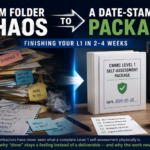
If you've followed the series to this point, you have two piles going. From Part 2, a set of written artifacts — policies, procedures, the system description. From this piece, a growing folder of captured configuration proof, taken at the moment each setting was made.
Which raises the obvious next question, and it's the one Part 4 answers: how do those two piles become a finished self-assessment? What does "done" physically look like — the organized, dated, defensible package, the SPRS score, the affirmation? Because a folder of good evidence is not the same thing as a completed assessment, and the gap between them is where a surprising number of contractors quietly stall out at ninety percent.
Worth saying plainly: right now is an unusually good time to be doing this work. Nothing is due, no assessor is scheduled, and the Task Force isn't expected to report until roughly mid-September. Whatever it concludes, the underlying obligations never went anywhere — DFARS 252.204-7012 and NIST SP 800-171 are exactly where they were. A configured, captured, defensible posture serves you in every outcome. Most of your competitors are spending this window waiting.
Want the eight guides instead of eight browser tabs?
The Turnkey Level 1 Package is $2,495/year — all eight device and network configuration guides, 15 practices mapped to 142 artifacts, templates matched to Microsoft 365 or Google Workspace, the Evidence Locker and SPRS report, and eight bi-weekly consulting sessions. Most clients complete their Level 1 assessment in two to four weeks, depending on infrastructure and how fast decisions get made on your end.
Book a Free 30-Minute Consultation → Run the Free AssessmentAbout the Author
Rob Maupin is the founder of Overwatch Tools, a CMMC compliance practice for small to medium defense contractors, and the author of CMMC Level 1: A Practical Guide for Small to Medium GovCon Contractors (available on Amazon in Kindle, paperback, and hardcover). He works with 5- to 50-employee GovCon firms on right-sized compliance. He's based in the Kansas City area.
Sources & Further Reading
- DoD CIO — CMMC Assessment Guide, Level 1 (Version 2.13) — practice statements, assessment objectives, and the assessment methods and objects referenced above
- NIST SP 800-171 Rev. 2 — the underlying requirements and discussion, including 3.14.2, 3.14.4, and 3.14.5
- FAR 52.204-21 — Basic Safeguarding of Covered Contractor Information Systems, the source clause for all fifteen Level 1 practices
- U.S. Department of War — "Forging the Arsenal of Freedom: Department of War Suspends CMMC Phase II Requirements" (July 13, 2026)
- U.S. Small Business Administration — statement on the CMMC Phase II suspension (July 13, 2026)
- SBA Office of Advocacy — Department of War Requests Information for CMMC Reform Task Force